After the relative ease of getting a local Moodle installation going on Kubuntu, is it possible to shrink this whole situation so we can get a few Moodle powered OpenLearn courses onto the Asus EEE PC and then take them with us wherever we go? It could be very handy to those who would like to learn but don't want to take a full sized laptop with them or even to those who are on the other side of education, the people who write the courses and would like the convenience of being able to work on them while out and about.
The good news is that it is possible, the EEE is a Linux machine after all. If you installed Windows(tm) on it, then the news might not be so good for you. Luckily, you can easily wipe Windows and restore the Linux image! The first thing you need to do is get the machine ready to host Moodle, that means you will need to install Apache, MySQL and PHP, follow my earlier post to do this: http://www.greenhughes.com/content/setting-lamp-environment-asus-eee. Now we need to install CURL and the PHP link to it:
sudo apt-get install curl php5-curl
Now you can pretty much follow the installation instructions on the Moodle website (http://docs.moodle.org/en/Installing_Moodle), however, there are a couple of special things we need to do to get the best out the EEE. After you have set the MySQL database, download the Moodle tarball ("Latest stable release" in "tgz format" is probably the best option for us) and extract it to /var/www (where the web files go for the installation of Apache on the EEE). You should now have all of the Moodle files under /var/www/moodle. Next, we need to amend the file /var/www/moodle/.htaccess (a .htaccess file is a file that can pass directives to the Apache web server as an alternative to a central configuration file) to tell Apache that it should accept file uploads of up to 64MB (big enough for OpenLearn) and we need to add a line to enable the URLs in Moodle to work properly so add "AcceptPathInfo on" to the end of this file. Your .htaccess file should look like this:
DirectoryIndex index.php index.html index.htm
php_flag magic_quotes_gpc 1
php_flag magic_quotes_runtime 0
php_flag file_uploads 1
php_flag session.auto_start 0
php_flag session.bug_compat_warn 0
LimitRequestBody 0
php_value upload_max_filesize 64M
php_value post_max_size 64M
AcceptPathInfo on
Before we go on to the installation though, we have to deal with a difference between the EEE and other computer systems: the size of the hard disk. Moodle courses can consume quite a lot of space, especially if they also include video and audio files, which is common for language courses. The EEE PCs typically have a 4GB hard disk (I don't know if all this works on the 2GB version), most of which is taken up already. So ideally we need to put the data files that Moodle will use onto some form of external storage. The actual choice is up to you, I used a 4GB USB memory stick, which is available for about £20, you could also use a SD memory card if you wish. Make a directory called "moodledata" on your storage device and amend the ownership of the new directory so the web server can write to it. You can do this by finding out where the device exists in the file system, by this I don't mean the shortcut under "My Documents" where it handily appears, but the mount point of the device. This is usually under /media so if you type (in a terminal) "cd /media" you should then under that directory be able to find the directory you created. You might have to go down a few levels of directory to find the right entry. Once you find it, you should type:
sudo chown www-data.www-data moodledata
.. to make it owned by the web server. After you do this you should make a full note of the path to this directory, you will need it for the Moodle installation. You should follow the instruction on the Moodle Installation page to secure this directory.
Now we are ready to install! Go to: http://localhost/moodle/install.php and follow the prompts, entering the path to the moodledata directory on your removeable storage device when asked. If you have trouble with this, you can alter the path after installation anyway by having a look in /var/www/moodle/config.php. Once you are up and running you will notice that Moodle takes up about 58MB of space on your hard disk, but adding new courses should mostly take up space on your removable storage device, there will be a slight impact on the internal hard disk due to new data being loaded into the MySQL database but this should be manageable.
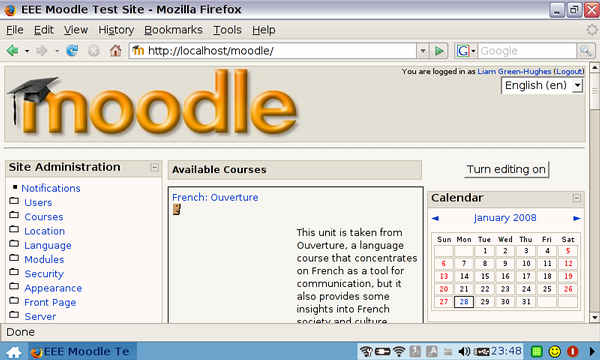
The results are quite pleasing (but not tested!), I tested this out with a few different OpenLearn courses, but found L120 French: Ouverture to be a good demonstration of the system's abilities, it contains audio and video files that the EEE dealt with easily.
Goosd Stuff :-), but...
...is there a way of doing *all* of this with a single click?
That is, is a script to automate this possible?
I was thinking we maybe need to host our own distro that has an openlearn populated Moodle preinstalled (ideally with an auto synch feature that will top up the envt with new courses?)
tony
RE: Goosd Stuff :-), but...
I think it could all be automated, what we would need to do is build a new package with all of this in, maybe port the Moodle package from Ubuntu to this platform, and then have one that would set up OpenLearn. Then we would need to host this on a repository. The Debian packaging system is very powerful and could be used to make installating OpenLearn and Moodle very easy indeed. I'm hoping to blog more about packaging soon (once I've read up on it enough!).
good stuff
hello. @tony - the issue is the amount of space that a moodle with openlearn preinstalled would take up on an eee.
we discussed making specific subjects available - i.e. moodle plus arts and history etc etc. we also thought about making the static html files available (via openlearn plain zips) and not using moodle at all - just adding a bookmark to the material to the browser.
moodle package for windows
Have anyone here with Windows on Asus EEE PC tried installing Moodle with windows package ( http://download.moodle.org/windows/ )? I tried it recently on my local computer and it was very easy. I was planning to create some tutorial about it on my page, but I am afraid there is not enough to show, it was a question of a few clicks...
Re: Installing Moodle onto the Asus EEE PC
Liam, thanks for this. I followed your instructions to the letter and they worked perfectly. I now have a fully functioning Moodle 1.9 site on my new eeepc! Perfect for demonstrations.
Re: Installing Moodle onto the Asus EEE PC
What about installing it on a Class 6 SDHC set to respond as if it was an onboard hard drive? Wouldn't that let you install it fully on Windows?
Re: Installing Moodle onto the Asus EEE PC
Although the Eee PC is nice, I believe that the XO laptop is way much better, I'm just hoping that someone will come out with a commercial version. Now, that's going to be a challenge for the EeePC
Re: Installing Moodle onto the Asus EEE PC
I like your writing style and I have added your site to my bookmarks, please keep posting, thanks.
Re: Installing Moodle onto the Asus EEE PC
I bought Asus EEE PC a few weeks ago and installed Ubuntu there. It works fine.
Re: Installing Moodle onto the Asus EEE PC
I have brought Asus EEE PC and I have used it for longer years compared to my XO laptop. XO laptop has nice features but Asus EEE PC has a good quality. Anyways, you have detailed step by step instructions and it's a good thing in writers.
From Shirley Saenz of Used engines for sale.