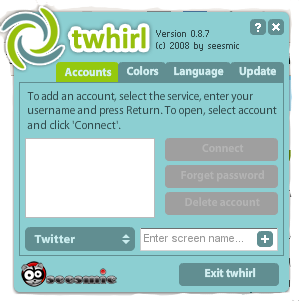
If you enjoy using social software sites such as Twitter, FriendFeed, Identi.ca and Seesmic you might have seen the Twhirl client and wished you could run it on your Ubuntu machine, but the current (at the time of writing) front page of the Twhirl site says that it is only available on Windows and Mac platforms. Well, wish no more because it is possible to run Twhirl on your Ubuntu machine (including 64 bit versions), and even on your Easy Peasy Netbook (and anything else running Ubuntu Netbook Remix). I've asked if it is possible to update the Twhirl front page to reflect the fact that it also works on Ubuntu, so hopefully that will change soon.
You'll need to install a couple of bit of software first to ensure that Twhirl will work. The first is Flash 10, this is available on Ubuntu 8.10 systems as a package. In many cases this will be installed already as you need it to use sites like YouTube, but you can double check by typing about:plugins into a Firefox address bar, you should see “ Shockwave Flash” listed, if you don't install the flashplugin-nonfree package (in a terminal you can enter sudo apt-get install flashplugin-nonfree), this will download and install the Flash plugin and do the required system configuration for you. There is also a beta 64 bit version of Flash 10 which can be found at the Adobe Labs, however I found this rather unstable at the moment.
Twhirl is an application that uses Adobe Air, which is a solution allowing software developers to write applications that will work across difference platforms without having to target each platform individually (an idea similar to Java). It is also, in a sense, Flash for the desktop. Adobe Air isn't yet packaged for Ubuntu so a manual install is required. You also need to ensure that you remove any versions prior to version 1.5 that you may have on your system as they won't work with Twhirl. Go to http://get.adobe.com/air/ and save the installer to a location that you can easily find it again. In a terminal go to the download location, and check that permissions are set up so that the file can run as a program (enter chmod u+x AdobeAIRInstaller.bin). Now run it by entering (note the dot and slash at the start): “ ./ AdobeAIRInstaller.bin ”. Once you agree to the license terms, you will be prompted for your computer password so that the software can install.
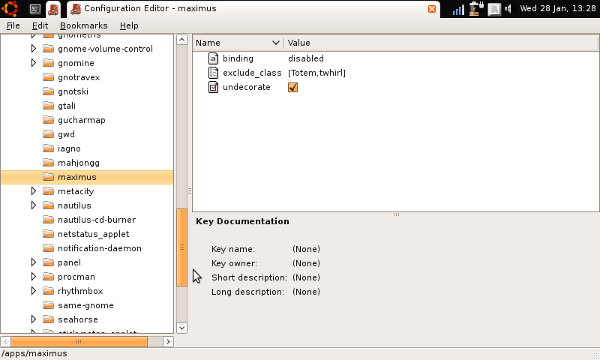
We are almost ready to install Twhirl itself, but if you are installing it onto a system running Ubuntu Netbook Remix (such as Easy Peasy) you need to do an extra step of preparation. This interface for Ubunt u contains a program called Maximus which auto-maximises programs when they are run so that they take up the entire screen, it also removes the title bar, which is a great way to get the most out of the small screen of a netbook. However, this doesn't seem to work very well with Twhirl, so we need to tell Maximus to leave Twhirl as it is. We do this by adding a rule for Maximus, to tell it that whenever it sees a window with “twhirl” in the title to ignore it. In a terminal enter the command gconf-editor this starts up a program that allows graphical access to a lot of the hidden settings of programs. In the left hand tab go to apps → maximus , then in the right hand window you should see an entry that says “exclude_class”, double click on the value for that (which will probably say “[Totem]”, a window will appear that allows you to edit this value. Click on “+ Add” and enter “twhirl” (in lower case, no quotation marks) for New list value .
Now we can finally install Twhirl, a process which will be handled by Adobe Air. Go to http://www.twhirl.org/ click “open” when prompted and then you will be presented with the obligatory unhelpful security message, which looks alarming but in fact is completely useless. I wish vendors would sort out this sort of thing out, make the warnings useful or get rid of them! Click on the Install button and you will now see installation preferences options, you can leave these as they are but if you are using Ubuntu Netbook Remix system you should untick “ Add icon to my desktop”. After you click “Continue” Twhirl will install itself, but sadly it does not install a menu shortcut, so we need to install one manually.
 Adding items to the menu is straightforward and is done with a program called Main Menu which can be found under System → Preferences → Main Menu on Ubuntu and Preferences → Main Menu on Ubuntu Netbook Remix systems. Click on Internet in the left hand panel and click the button marked New Item on the right. Enter the following information:
Type: Application
Name: Twhirl
Command: /opt/twhirl/bin/twhirl
Comment: twhirl – a social networking client
Click on the icon to the left of type and click “Browse” go to /opt/twhirl/share/icons click Open and select the icon named “twhirl-128.png” and click Ok and then Ok again to save your new menu entry. You should now be able to launch Twhirl from your menu and log into Twitter, and other services. I can be found on Twitter under the name @liamgh, if this works for you give me a shout!
Re: How to install Twhirl on Ubuntu (and Easy Peasy)
Works... thnx.
Re: How to install Twhirl on Ubuntu (and Easy Peasy)
You are my hero! Thank you for the walk-through, I can now twit in comfort from my netbook once again!
Re: How to install Twhirl on Ubuntu (and Easy Peasy)
How do I "go to the directory" in terminal? Is there a command to enter?